You can install Jamdar directly on your phone or computer. Here's everything you need to know about using Jamdar as a Progressive Web App (PWA).
Want the steps for your exact device? Open our install guide on the phone or computer you want to install Jamdar on.
What is a PWA?
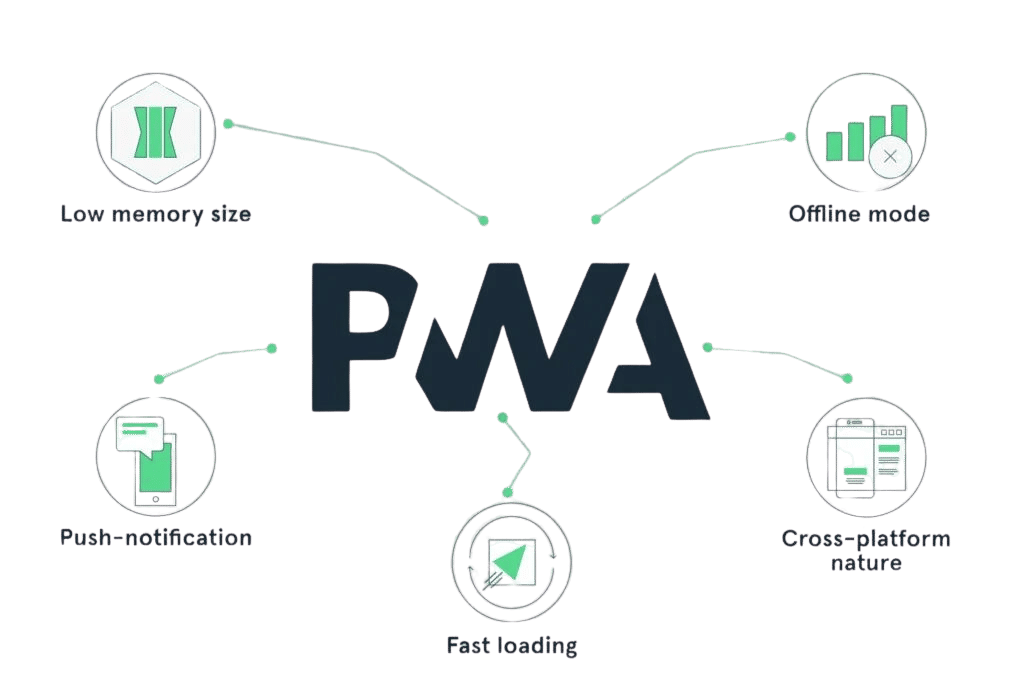
A Progressive Web App (PWA) is a website that behaves like a native app. When you install Jamdar as a PWA you get:
- A home screen / desktop icon — launch it like any other app
- Full-screen experience — no browser address bar cluttering the view
- Push notifications — stay updated when someone messages you or accepts your connection request
No App Store. No Google Play. No 200MB download. Just Jamdar, instantly.
Opened this from Facebook, Instagram or WhatsApp?
Their built-in browsers can't install apps. Tap the ··· or ⋮ menu, choose "Open in browser" (Safari on iPhone, Chrome on Android), then follow the steps below.
iPhone & iPad (Safari)
Safari is the most reliable way to install Jamdar on iPhone and iPad.
- Open Safari and go to jamdar.app
- Tap ··· next to the address bar, then "Share". On older iPhones, tap the Share button (the box with an arrow pointing up) at the bottom of the screen; on iPad it's at the top right.
- Scroll down and tap "Add to Home Screen"
- Keep "Open as Web App" switched on, give it a name (or leave it as "Jamdar") and tap "Add"
- Open Jamdar from your Home Screen. If it asks you to sign in, sign in once: the app keeps its own sign-in, separate from Safari.
Jamdar will now appear on your home screen like any other app.
Note: Chrome, Edge and Firefox on iPhone can also add Jamdar to your Home Screen from their share menu, but Safari is the reliable way to get the full app and notifications.
Android (Chrome)
- Open Chrome and go to jamdar.app
- Tap the three-dot menu (⋮) in the top-right corner
- Tap "Add to Home screen" or "Install app"
- Tap "Install" to confirm
Jamdar will appear in your app drawer and home screen.
Tip: Chrome may automatically show an "Install" banner at the bottom of the screen — tap it to install in one step.
Android (Samsung Internet)
- Open Samsung Internet and go to jamdar.app
- Tap the menu (≡) in the bottom-right corner
- Tap "Add page to", then "Home screen"
- Tap "Add"
Android (Edge)
- Open Edge and go to jamdar.app
- Tap the menu (···) at the bottom of the screen
- Tap "Add to phone"
- Tap "Install"
Android (Firefox)
- Open Firefox and go to jamdar.app
- Tap the three-dot menu (⋮), at the top or bottom of the screen depending on where your toolbar is
- Tap "Install" (older versions say "Add to Home screen")
- Tap "Add"
Desktop — Chrome or Edge (Windows / Mac / Linux)
- Open Chrome or Edge and go to jamdar.app
- Look for the install icon (a screen with a download arrow) in the address bar on the right
- Click it and select "Install"
Alternatively:
- Chrome: Three-dot menu → "Save and share" (or "Cast, save and share") → "Install Jamdar"
- Edge: Three-dot menu → "Apps" → "Install Jamdar"
Jamdar will open in its own window and appear in your taskbar and Start menu / Applications folder.
Desktop — Mac (Safari)
Safari on macOS Sonoma (14+) supports PWA installation.
- Open Safari and go to jamdar.app
- Click "File" in the menu bar (or click the Share button)
- Select "Add to Dock"
Jamdar will appear in your Dock like a native Mac app.
Desktop — Firefox
On Windows, Firefox 143 and later can install Jamdar: click the install icon on the right of the address bar, and Jamdar is added to your taskbar and Start menu. On Mac and Linux, Firefox can't install web apps yet, so use Chrome or Edge (or Safari on a Mac).
Turn on notifications
Once Jamdar is installed, switch on notifications so you never miss a message or a connection request:
- Open Jamdar. On iPhone and iPad, open it from your Home Screen: notifications only work there, on iOS 16.4 or later.
- Go to Settings and turn on "Push notifications"
- Tap "Allow" when your device asks
On a Mac, also allow notifications for your browser (or the Jamdar app) in System Settings → Notifications.
Troubleshooting
The install option isn't appearing Make sure you're on https://www.jamdar.app and using a supported browser (see above). If you opened the link from Facebook, Instagram or WhatsApp, open it in Safari or Chrome first.
I installed it but it looks the same Close the browser tab and relaunch Jamdar from your home screen or app icon — you'll get the full-screen experience without any browser UI.
The app asks me to sign in again That's normal on iPhone: the Home Screen app keeps its own sign-in, separate from Safari. Sign in once and you'll stay signed in.
Notifications aren't showing up Check that "Push notifications" is on in Jamdar's Settings on that device. On iPhone, also check Settings → Notifications → Jamdar, and whether a Focus mode or Notification Summary is holding them back.
How do I uninstall it?
- iOS: Long-press the Jamdar icon → "Remove App"
- Android: Long-press the icon → "Uninstall"
- Desktop Chrome/Edge: Open the app, click the three-dot menu → "Uninstall Jamdar"
- Mac (Safari): Delete Jamdar from the Applications folder in your home folder
Ready to install? Head to jamdar.app and get set up in under a minute. 🎸
Or open our install guide for the steps on your exact device.